
0
Assigning Framework LogicNets Packages to User Groups
A number of LogicNets framework packages provide basic building blocks for application management, including User Management and System Configuration. These packages allow you to designate roles and assign groups to those roles.
To implement and assign user access based on group do the following from the Access Management package on your LogicNets dashboard:
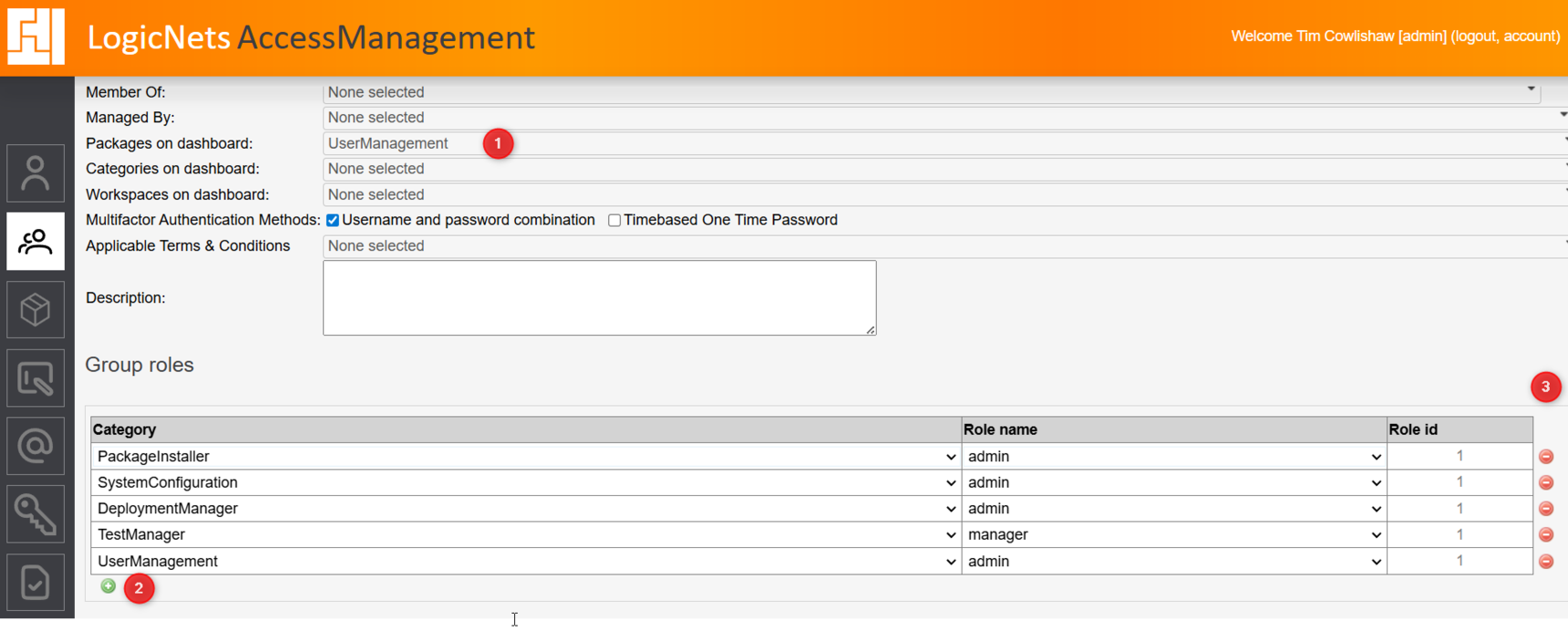
- Step 1: Go to Groups on the navigation menu and select a group to which you want to assign a role/privileges. Click Modify. Select the package you want to assign from the Packages on dashboard dropdown menu.
- Step 2: In the Group roles section, add the appropriate roles by selecting the package you added and assigning a role. If you want to add more than one role, you will need to add a line for each one; see the table below.
To remove/change a group role, click on the red delete button at the end of the line; see 3 in the screenshot above.
The following table identifies the packages and associated roles available.
| Package | Required Role | Notes |
|---|---|---|
| User Management | (multiple) | See Assigning User/Access Management to Admins for more information. |
| Deployment Manager | admin | See Deployment Manager articles for more information. |
| KnowledgeCenterApp | guest user publish admin |
|
| oauth-tester | admin | |
| Package Installer | admin | |
| Scheduler Monitor | No roles defined/required. | |
| Standard Reporting | No roles defined/required. | |
| SystemConfiguration | admin | See System Configuration articles for more information. |
| Test Framework API | create |
|
| Test Manager | manager | See Test Manager articles for more information. |
| Web Services Framework | No roles defined/required. | |
| AssessmentFrameworkFhirQ | api addcase sendfeedback |
See FhirQ Support articles for more information. |
Reply
Content aside
- 1 yr agoLast active
- 23Views
-
2
Following