
Customizing Revision Status in Version Control
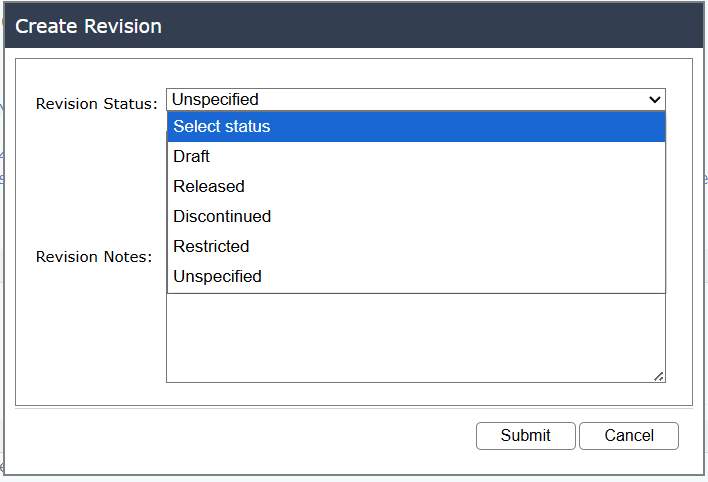
Description
With v8.4+, the System Configuration package has a customizable list of revision status labels, allowing you to name revisioning steps based on your company's internal processes and approvals. This update allows you add any number of status labels and overwrite or remove any or all of the existing ones (excluding two "system" status labels. You can tie revision status labels to the language of your internal process for creating content, review, and finalizing testing and release.
Two system labels cannot be removed:
- "Restricted" label has a unique feature that hides those revisions with that label from everyone except workspace admin users. This can be useful for removing abandoned revisions from the general user community.
- The "Unspecified" label is the default for creating the first revision, and is always available in case there are no other available labels specified in the SysConfig table.
Tips and Tricks
Default status labels are loaded into the Designer tab of the SystemConfiguration package
LogicNets recommends keeping a label for those revisions that should no longer be used. "Discontinued" label, for example is included in the default list with this purpose in mind.
Default Revision Status Labels
The default revision status labels for new installations are as follows:
- Draft - This is a generic status indicating the content is not final.
- Beta - This generic status indicates content is undergoing testing.
- Released - This is a generic status that indicates content has been released.
- Discontinued - This status allows users to indicate this revision should not be used.
- Unspecified - This is the default revision label. This label does NOT show in the System Configuration package
- Restricted - This status is only available to users with the workspace admin role. It hides restricted revisions from non-admin users. This label does NOT show in the System Configuration package.
If you remove a label in the System Configuration package that is still in use with your project, it retains that status (and the status remains visible in the Deployment Manager) until you check itin again. At that point, the former status is not available in the dropdown, so the status defaults to "Unspecified" and you must select that or choose from the available list.
Status Label Format
Custom labels can use any alphanumeric characters, lower or upper case (a-z, A-Z, 0-9) and spaces, and are truncated to 25 characters.
| Valid Labels | Invalid Labels |
- Work in Progress - Under Review by Team X - Approval Gate 1 - Ready for Testing - Ready to Deploy |
- This project is currently in development (> 25 characters) - Review #2 (non-alphanumeric character) - Approved + Signed Off (non-alphanumeric character) - Release 1.0 (non-alphanumeric character) |
When checking a project in, the Designer will not list any label that does not meet the format requirements. To correct errors or edit a label, follow the steps below. Your changes are only visible once you have exited and re-entered the Designer.
Maintaining Revision Status Labels
To add, remove, or modify a status label, navigate to the System Configuration package (requires permission via the User Management module) and click on the Designer tab to access the screen below.
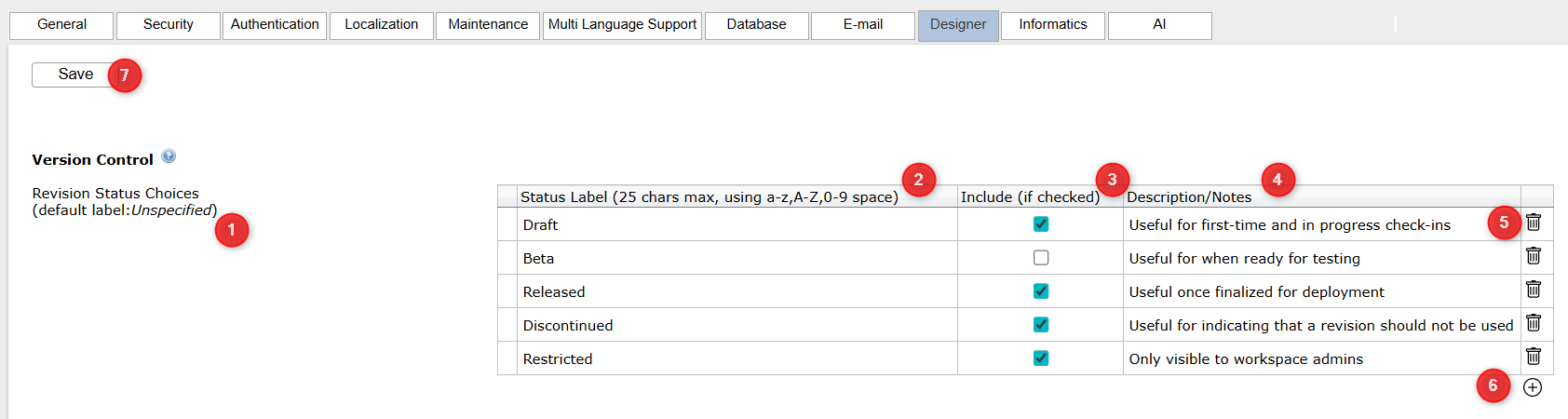
- Regardless of any changes, the system always includes Unspecified in the revision status dropdown menu.
- Edit the status label of an existing or new entry here.
- Check the box to include this label in the installation. You will see the update on login.
- Add any notes here; this information is not visible in the Designer.
- Delete any unwanted or erroneous entries.
- Add new entries by clicking here.
- After making all changes, remember to click Save.
Changes will take place the next time you launch the Designer in any workspace.
Reply
Content aside
- 8 mths agoLast active
- 16Views
-
2
Following