
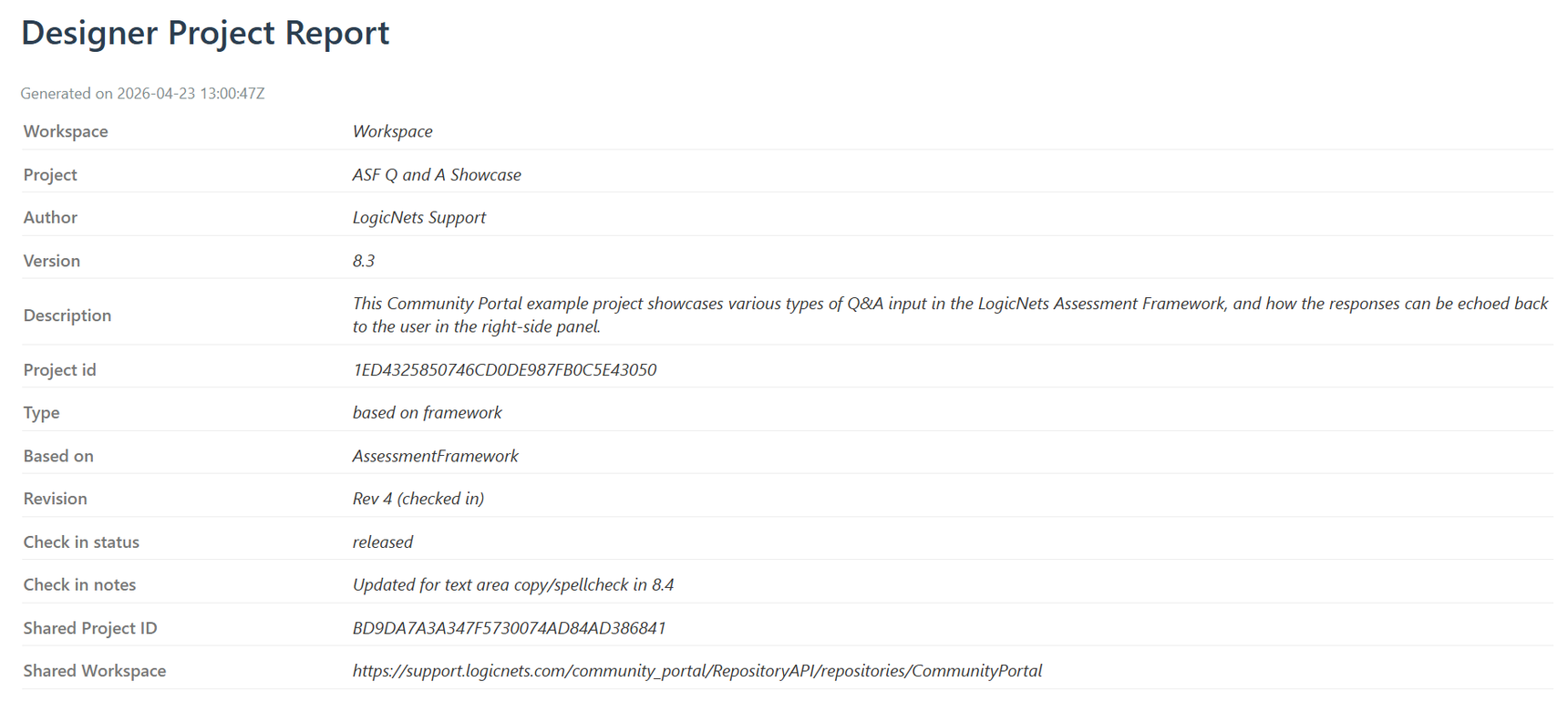
Designer Project Report
Description
This feature is useful in documenting and preserving a record of your projects. For any project, you can generate and download an HTML-based report that outlines the logicnets, nodes, parts and content resources used in a project.
Generate and Save Report
In the bottom panel of the Designer screen, select the Review tab. Note, based on your subscription/license, not all tabs in the image below may be visible in your account.

Select the following:
- Generate report - When you click this the system creates a report and allows you to review the report.
- Download report - Once you have created a report, click this to download an HTML file of the report for printing and other use.
Notes:
- If you are using version control, the system prints the project revision number in the header.
- You can hardcode the project version in the project settings.
Tips and Tricks
When using version control, we recommend that you generate/save copies once you check in the project so the report is tied to the designs you included in the revision. Once the project is checked out and edited, the report will correspond to the designer project as it is in the revision PLUS any new changes made since the checkout date/time.
Using Profiles
The default Designer Project Report uses the "All Access" Designer Profile that prints all the active parameters for a node.
If you are using Designer Profiles you have access to a custom profile that only displays your relevant configuration items in the part editors (see the Designer Profiles article for more information).
Running the Designer Project Report after selecting that profile will generate the report only displaying the configuration items from the profile, and hiding unused and irrelevant fields.
Reply
Content aside
- 7 mths agoLast active
- 16Views
-
2
Following