
Create a New Configuration
A configuration contains details of all the workspaces, projects, revisions, packages, and deployment images associated with that configuration. To add a new configuration click the + sign on the left-side panel. The system opens a popup window, where you can enter the configuration name and optional description details. Note that configuration names must follow these guidelines:
- The configuration name must be unique.
- The configuration name can only include lowercase letters, numbers, underscores (_), hyphens (-), and periods/dots (.)
For information on and help with using prefix and postfix start codes in the Configuration Manager, see Parallel Version Support: Setting Prefix and Postfixes, Start Codes, and Library Links.
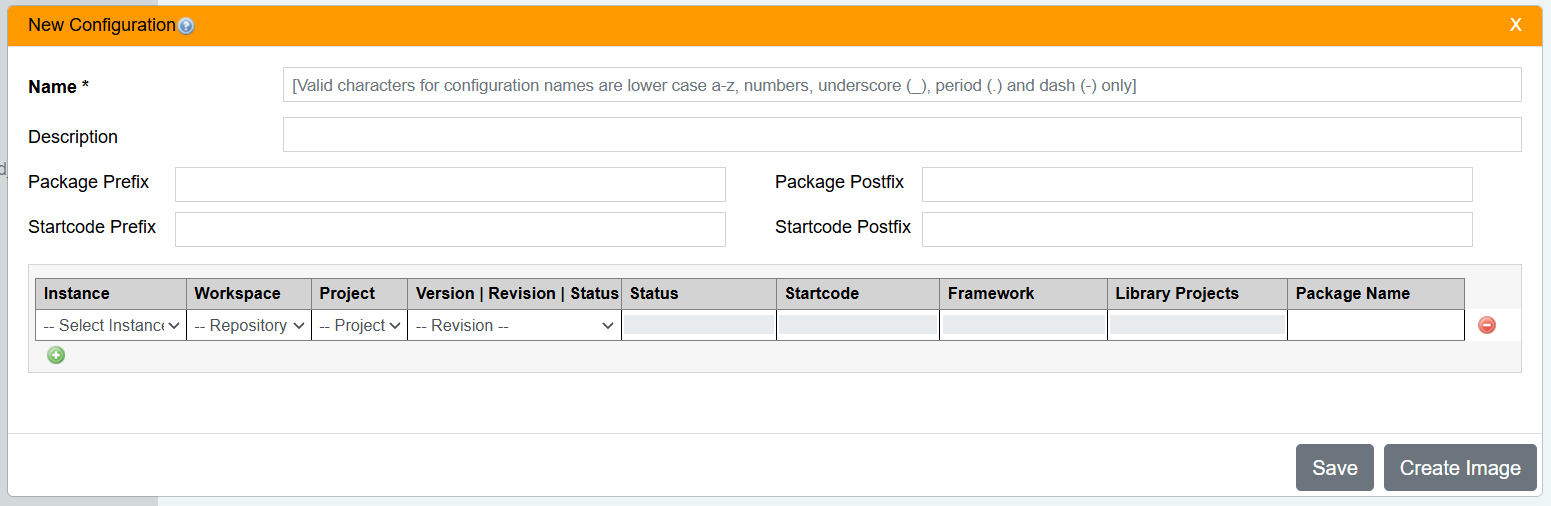
In the Instance dropdown menu, the system displays a list of all design instances configured on the dashboard. Using this dropdown menu, add the list of projects and their version to the configuration screen. Based on the instance you select the system displays the available list of repositories in the repository dropdown.
Choose the project and version you want to deploy, and the system auto-populates the package name field. You can change the package name, however, if you prefer, remembering that package names can only consist of lowercase letters, numbers, hyphen, underscores, and periods. The system displays any validation errors, which you must fix before the system creates a new configuration.


Once, you have created a configuration, the system displays it in the configuration details window:

Reply
Content aside
- 2 yrs agoLast active
- 29Views
-
2
Following