
Configuring IdP in Access Management

With v8.4, LogicNets provides a wizard to help you configure the access authentication information in the settings.cfg file. To use this wizard, go to the Access Management function on your LogicNets dashboard.
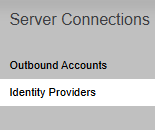
From Access Management, click the Server Connections icon, which is shown above, and select the Identify Providers sub-option. This takes you to a screen summarizing your current applied IdP configurations, which can include the following:
- Configuration applied to the instance: This is the root URL, it is read-only, and you can only change it by directly editing the config.sys file at the instance level (../logicnets/dat/).
- Configuration for Admins only: This is only visible when you use the _admin suffix to the launch URL.
- Configuration for all users: This is visible on the general logon screen.
Create a New Configuration
You can view, edit, or delete any configuration that is not read-only, and the following screenshots show the steps you can take to create a new configuration.
- Enter the URL. The system validates this field against known formats.
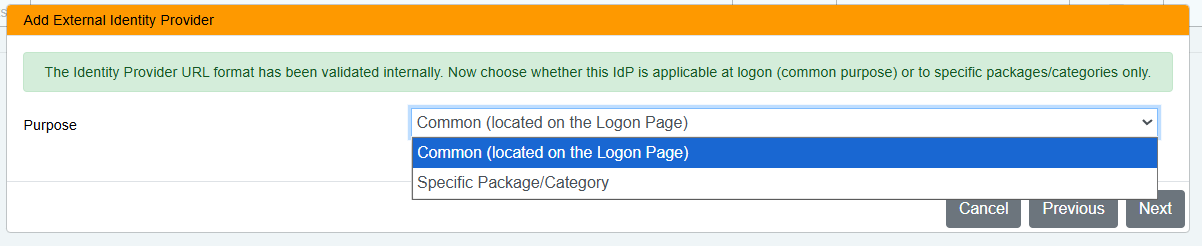
- Using the Purpose dropdown menu, specify if the IdP applies to the common logon page or to a specific package or category.
- Record the Client ID/Client Secret from your IdP's configuration page.
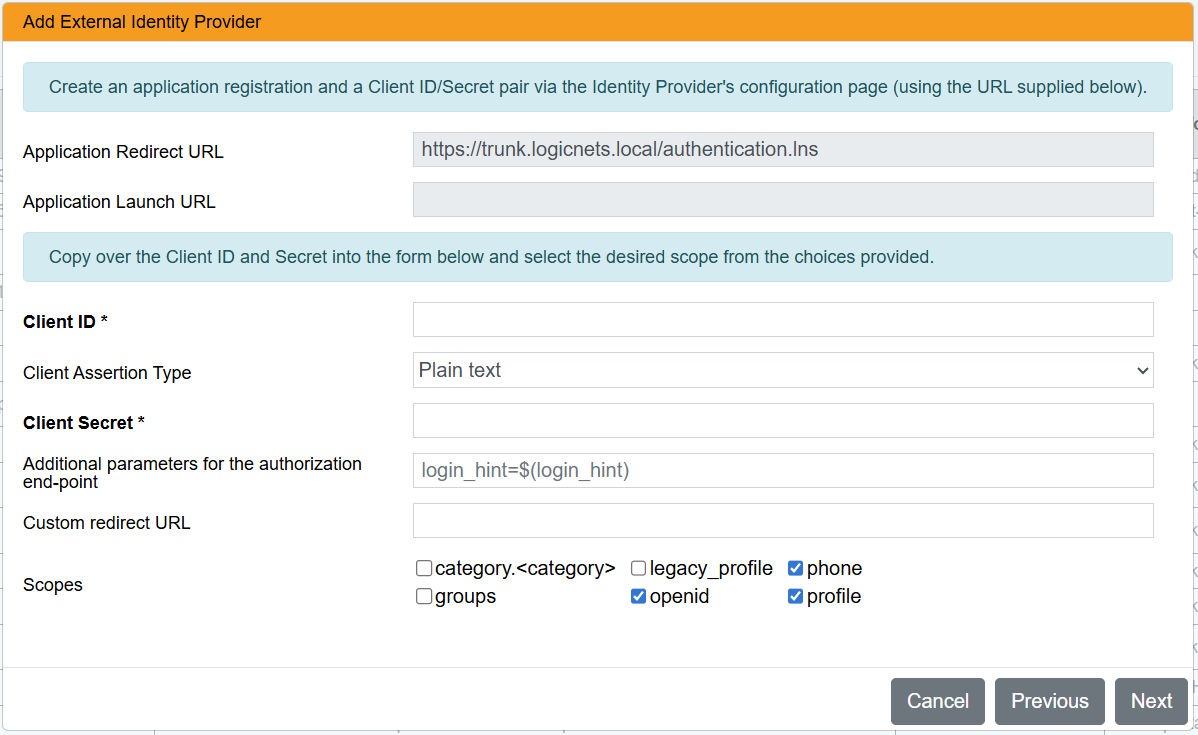
Note that there are various assertion types, including the following:Plain text (Shared Secrets): With this type, both the Identity Provider and the Client share and the same secret, which is typically generated by the Identity Provider.
JWT Bearer: With this type of assertion, the system uses a signed JWT token for authenticating the IdP Client using a static set consisting of a Public and Private key. The private key is stored at the IdP Client and the public key is stored at the Identity Provider. The LogicNets system only supports RS256 keys, and there are different tools available for generating a RS256 public/private key set. LogicNets' AccessManagement supports generating such a set when a server user is created.
JSON Web Key Set: With this type, a signed JWT token is used for authenticating the IdP Client using rotating keys that are generated by the IdP Client. Both the private and public key are stored at the IdP client, and the IdP client must offer a publicly available URL endpoint that exposes all public keys. The Identity Provider must configure this endpoint, use that endpoint to get the latest public key, and verify the JWT signature using that key.
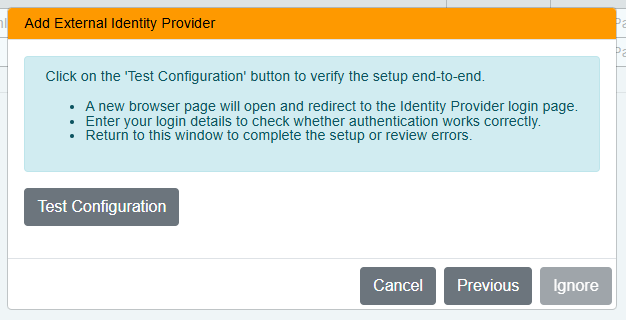
- Test the configuration and review any errors if they appear.
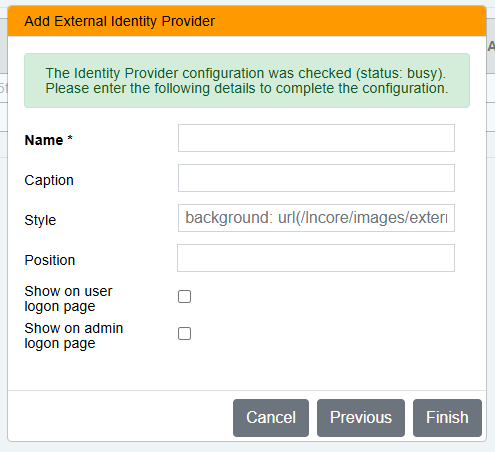
- Add any UI details to the configuration and click Finish.
Configure an External Identity Provider iFrame Mode
To configure an external Identity Provider, go to Access Management > Server Connections > Identity Providers.
- Click View on the specific Identity Provider you want to configure.
- Click Edit.
- To edit the iFrame mode, go to the Advanced Parameters section of the View/Edit configuration popup and use the dropdown menu to make your selection.

Edit Rotating Keys
With v8.4, when you use LogicNets as an IdP Client the system also supports rotating keys, which get renewed every 30 days.
The IdP can retrieve the public keys through LogicNets' JSON Web Key Set URL: https://<hostname>/<company>/oauth2token/keys, which can contain multiple public keys--each one identified with the public key identifier (kid). The header of the JWT bearer token contains the JSON Web Key Set (jku) URL and the kid URL. The Identity Provider determines if the jku is whitelisted and belongs to the IdP client-id. Using the jku for signing JWT tokens is not yet widely used, but some production systems do require it.
To use the rotation keys, do the following:
- Open AccessManagement on your LogicNets server.

- Click Identity Providers.
- Click the View button on the configuration line you want to update.
- Click Edit to edit the configuration.
- Ensure that the Client Assertion Type is set to JSON Web Key Set URL. Test and save your updates.
- Register the LogicNets JSON Web Key Set URL: https://<hostname>/<company>/oauth2token/keys.
Additional Information
For more detailed information about configuring external IdPs, see these articles:
Reply
Content aside
- 1 yr agoLast active
- 38Views
-
2
Following